Features
Everything JK RapidReader does.
A speed reader, a read-later library, an RSS reader, a text-to-speech player and an AI chat, in one free extension. Here is all of it, grouped by what you are doing.
01 — Reading
Speed reading that stays readable.
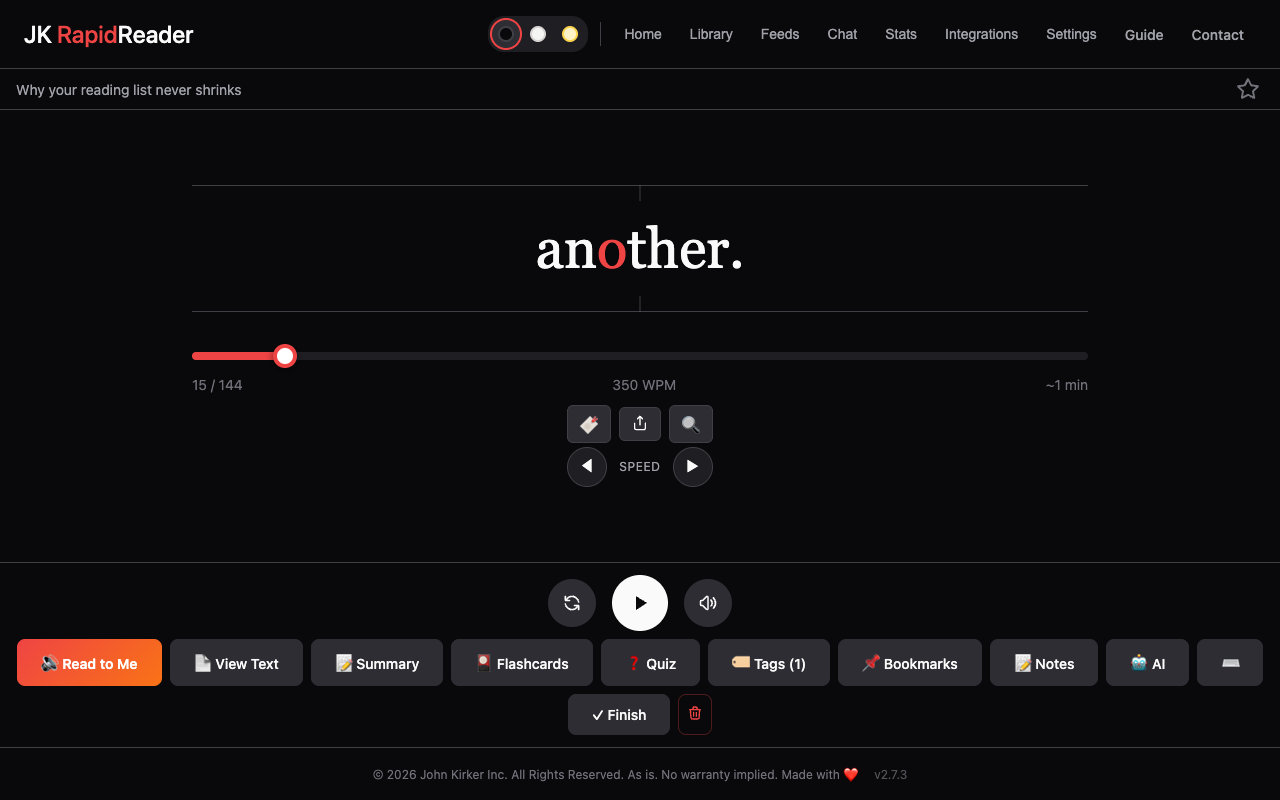
One word at a time, in one place, with a focus letter on the centre line.
01
One word at a time
RSVP: the text comes to your eyes, so they stop jumping along lines.
02
Focus letter
One letter per word in red, held in the same spot, gives your eye an anchor.
03
Speed control
25 words a minute at a time with the arrow keys, or type an exact speed.
04
Warm-up
Each session builds from your start speed to your target over a few seconds.
05
Natural pauses
A little longer at commas and full stops, and for long words. You set how long.
06
Chapters and contents
Books and long documents get a table of contents and next and previous chapter.
07
Search
Find a word or phrase and jump straight to it.
08
View Text
See the whole text normally, to reread a passage or edit it.
09
Continue
Your place is saved in every article. Pick up exactly where you stopped.
02 — Listening
Have it read to you.
Read to Me reads aloud and highlights each word as it goes.
01
Browser voices
Your computer’s own voices: free, offline, and good on a Mac with Premium voices.
02
AI voices
Natural OpenAI voices with your own key. Experimental.
03
Word highlighting
Follow along as each word is spoken.
04
Speed and voice
Choose a default voice and speed, and change speed while listening.
05
No novelty voices
The macOS voices that sing or make sounds are left out of the list.
06
Sound feedback
Gentle sounds for actions, with several sound packs, or none.
03 — Saving
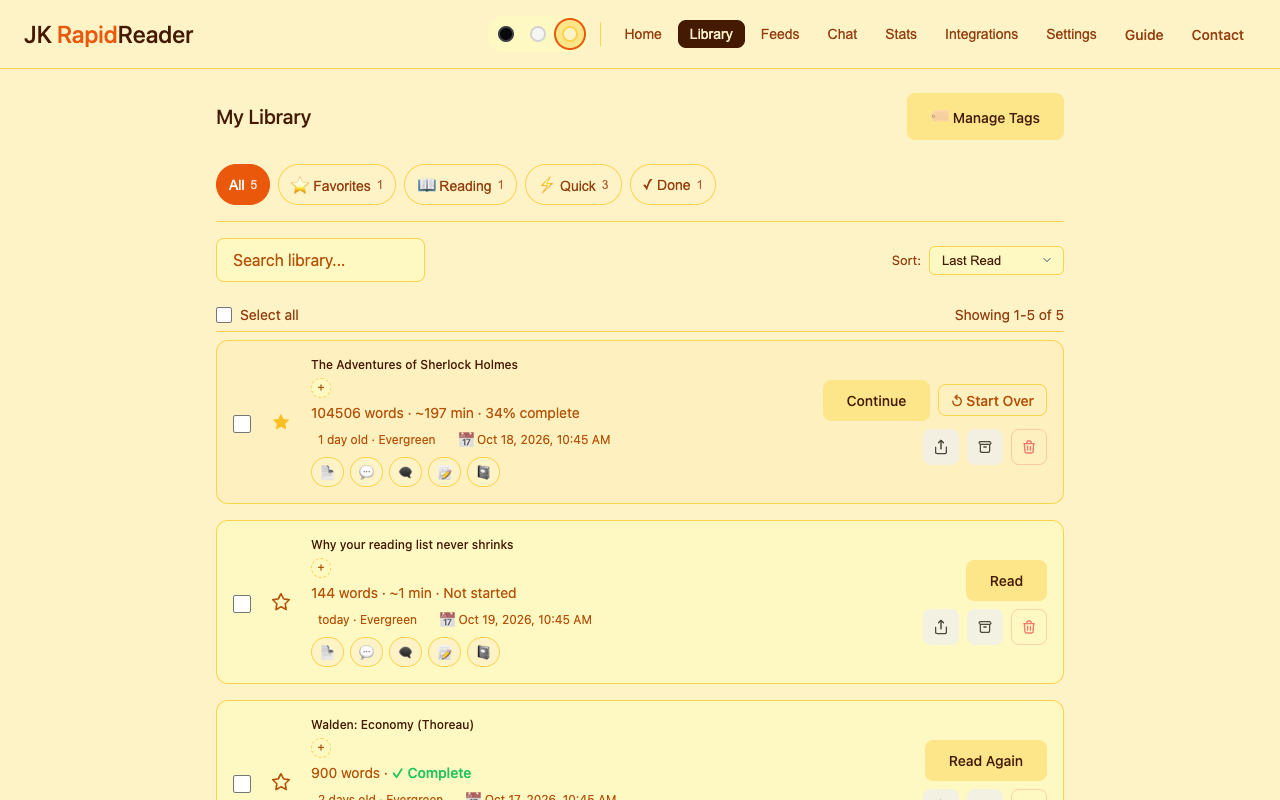
Bring in anything worth reading.
From a right-click, a link, a web address or a file.
01
Right-click
Read a selection now, or add a link or the whole page to your library.
02
Files
PDF, EPUB, Word (DOCX), RTF, Markdown, plain text and HTML.
03
LiveLinks
Right-click a link to a PDF or document and add it without opening it.
04
Web addresses
Paste an address and RapidReader fetches the article text.
05
Cleanup
Remove menus, ads and leftovers in one click, or tidy a document with AI.
06
Honest imports
If a site blocked the import, the library says so and offers Re-fetch.
04 — Library
One library, sorted the way you think.
Search, filter and tag, and let old news sink.
01
Search
Titles and full text.
02
Filters
Favourites, Reading, Done, and Quick: things you can finish in about five minutes.
03
Freshest First
Sort so news ages out while evergreen pieces stay near the top.
04
News, Evergreen, Reference
Each item is labelled; click to change how it ages.
05
Tags and archive
Organise as much or as little as you like. Select several items at once.
06
Share
Copy an article as Markdown, download it, or send it by email or message.
05 — Feeds
RSS, without another app.
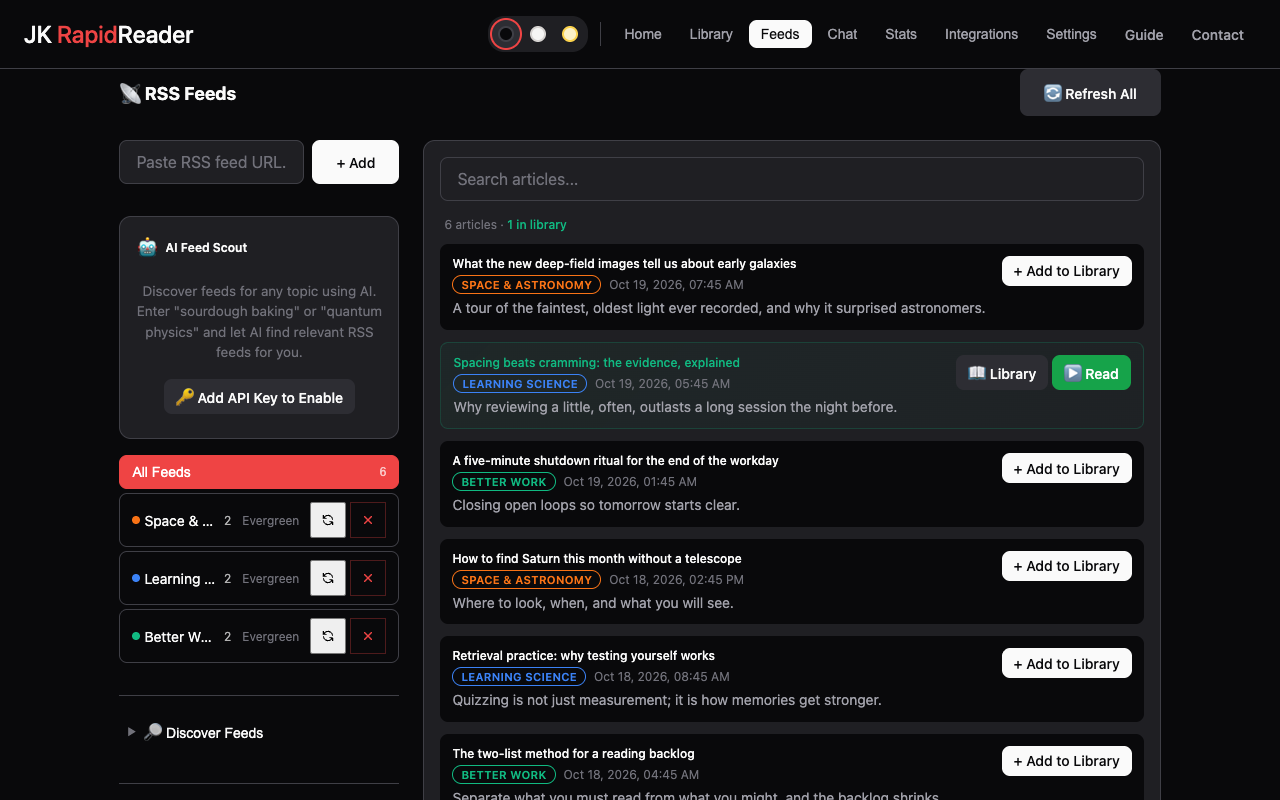
Follow sites, search everything they publish, and save the full text.
01
Add any site
Paste a site or feed address.
02
Directory
Feeds by category to get started.
03
Feed Scout
Describe a topic and AI suggests feeds worth following.
04
Search and saved searches
Across every item your feeds brought in.
05
Full text
Adding an item saves the whole article, ready to read, hear or ask about.
06
News or Evergreen
Set from how often a feed publishes, so its items age sensibly.
06 — AI tools
Check what you read, and use it.
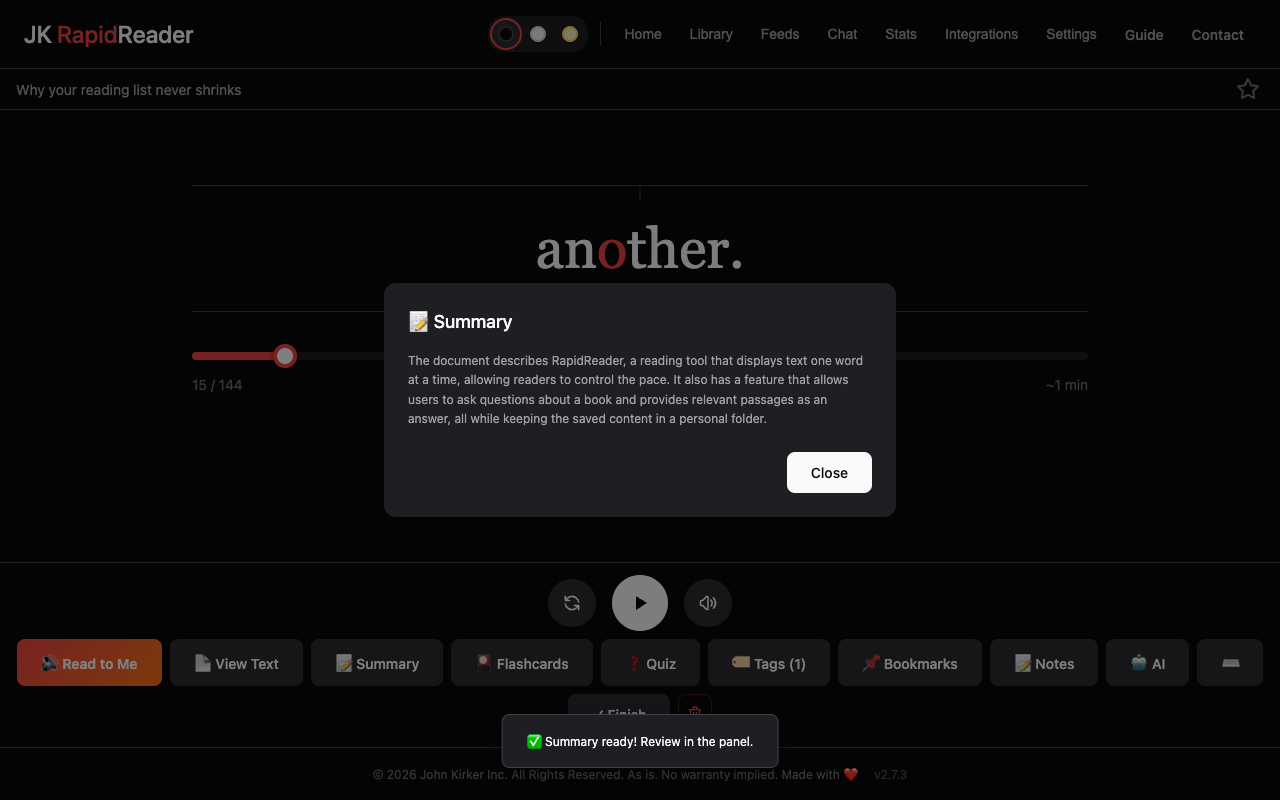
With your own key for Claude, ChatGPT, Gemini or Grok, or free on your own computer with Ollama.
01
Summaries
Brief, standard, detailed, or key points. Optionally made for every new import.
02
Quizzes
Multiple-choice questions on what you just read, graded, with explanations.
03
Flashcards
Cards to review the key ideas.
04
Key takeaways
The main points in a few lines.
05
Saved with the article
Everything you generate is one click away in your library.
06
Cost shown first
You pay the provider directly. RapidReader shows the cost before you send.
07 — Chat
Chat with a book, not just a page.
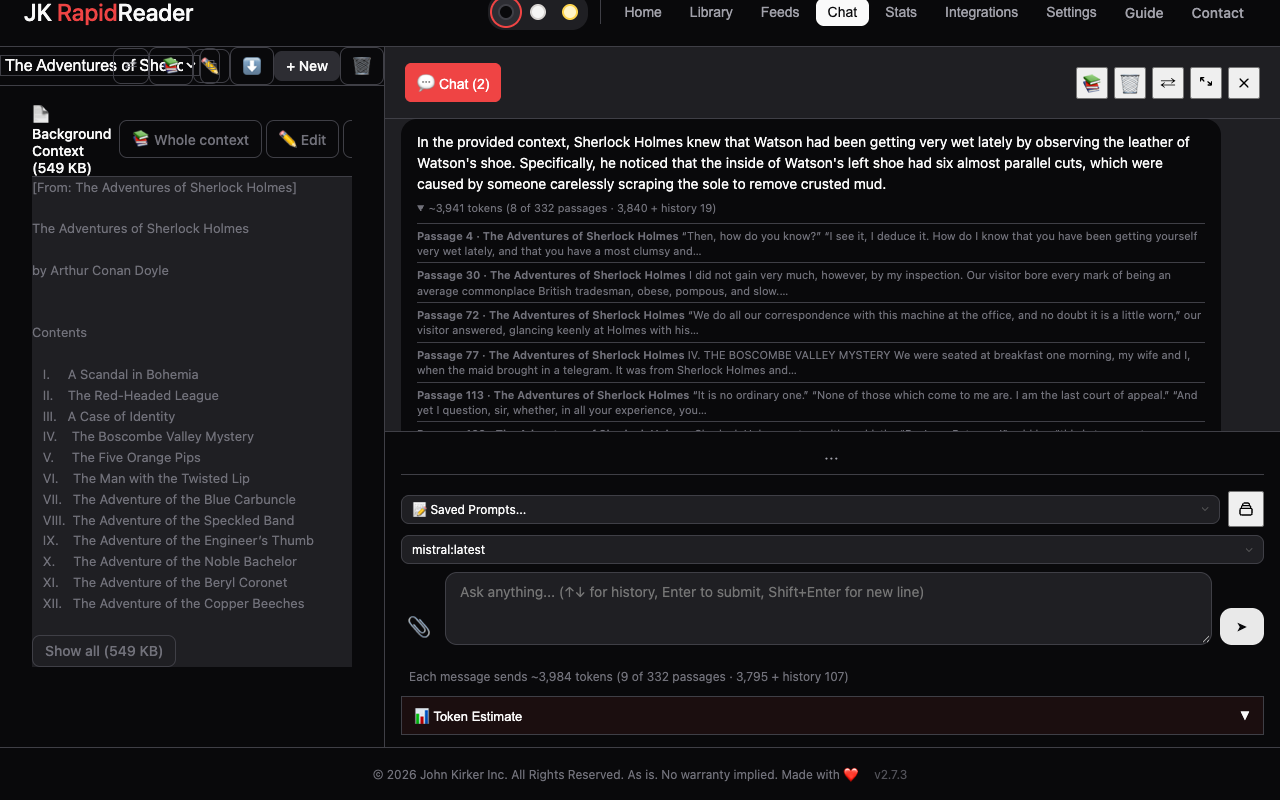
Give a chat background context and ask. Long documents send only the passages that matter.
01
Background context
Paste text, import a file, or add articles from your library.
02
Relevant passages
For long documents, only the passages that matter are sent, and you can see which.
03
Instructions per chat
Tell the AI how to answer in this chat, and pick its model.
04
Prompt Library
Save requests you use often: a LinkedIn post, an email, a briefing.
05
Images
Ask about an image, or generate one with the image model you choose.
06
Keep it
Export a chat as Markdown or save it to your library.
08 — Notes and stats
Remember where you were, and see how you read.
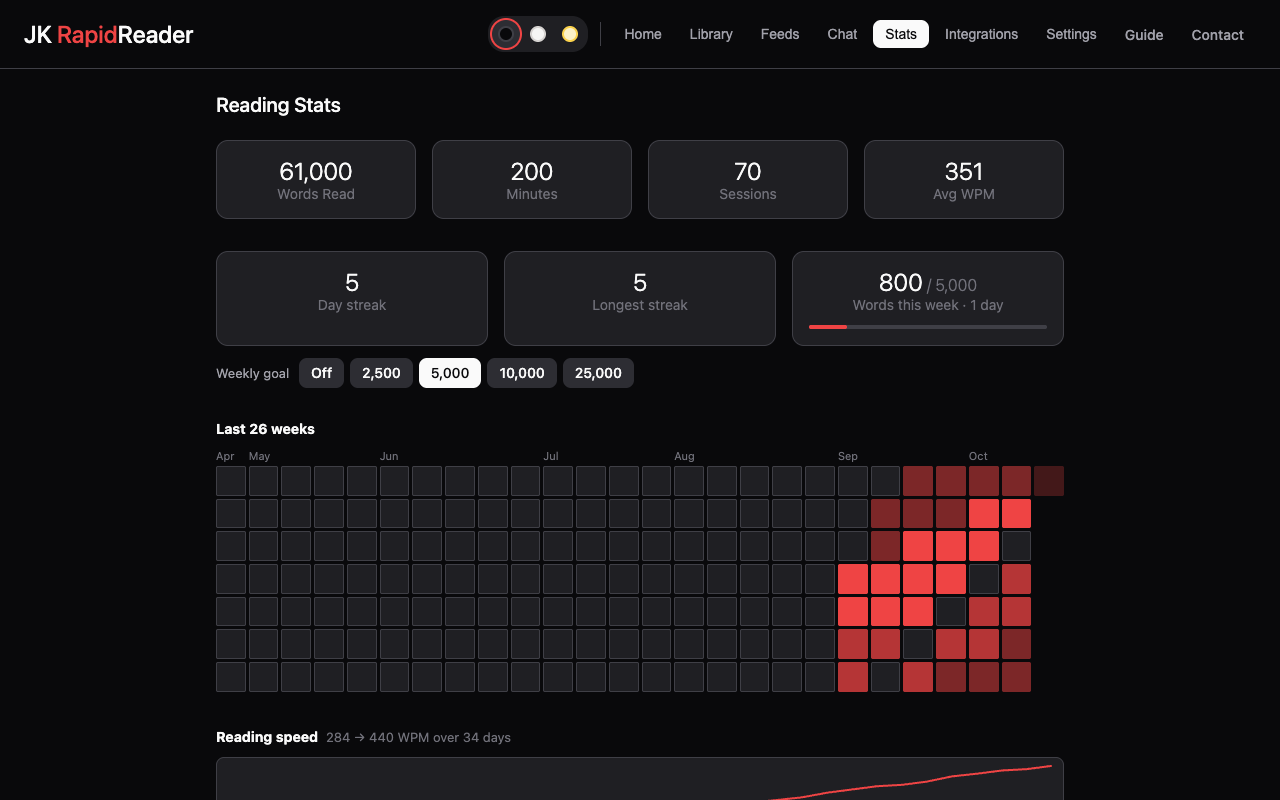
Notes and bookmarks tied to the exact place, and stats that are only yours.
01
Notes in place
A note is tied to its spot in the text. Click it to go back there.
02
Bookmarks
B to add, Shift-B to list.
03
Readwise
Send articles and your notes to your Readwise account.
04
Streak and goal
Words read this week against a goal you choose.
05
Reading calendar
Which days you read, and how much.
06
Speed over time
And the times of day you read most.
09 — Make it yours
Comfortable for your eyes.
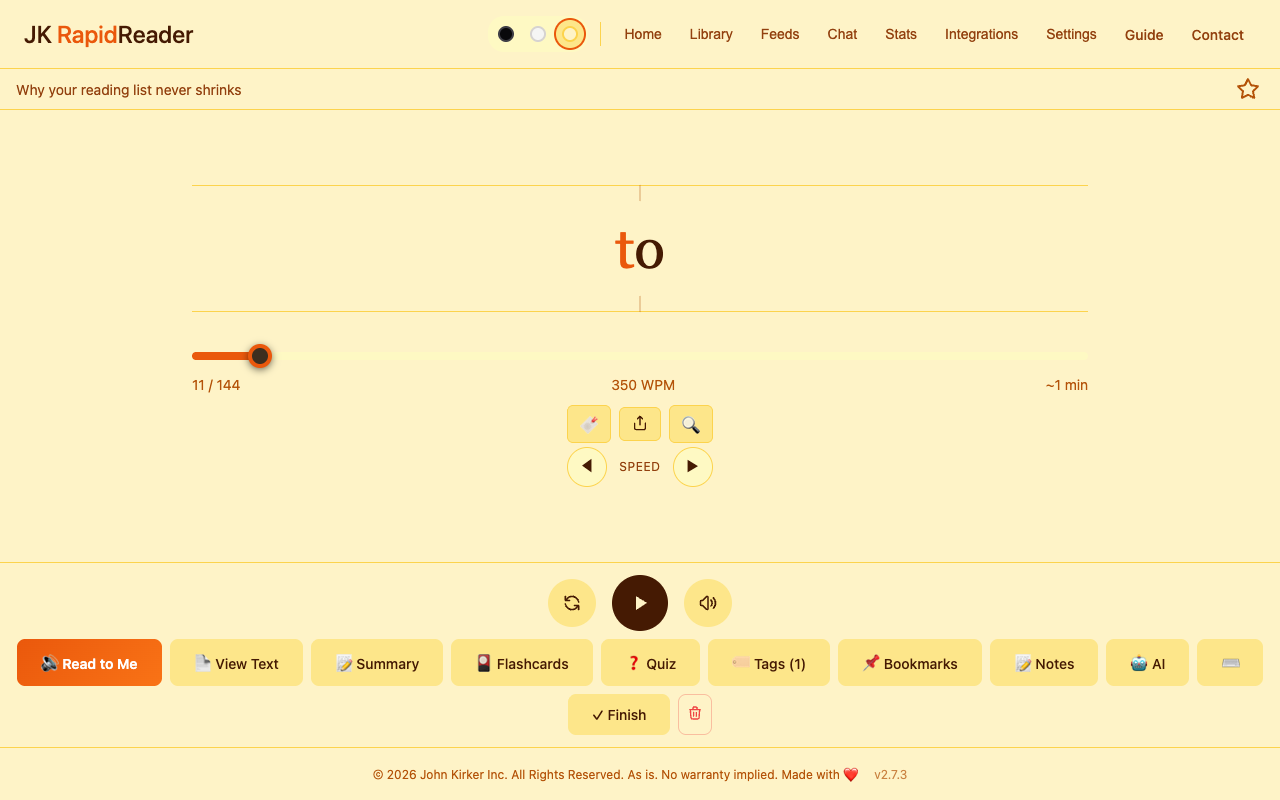
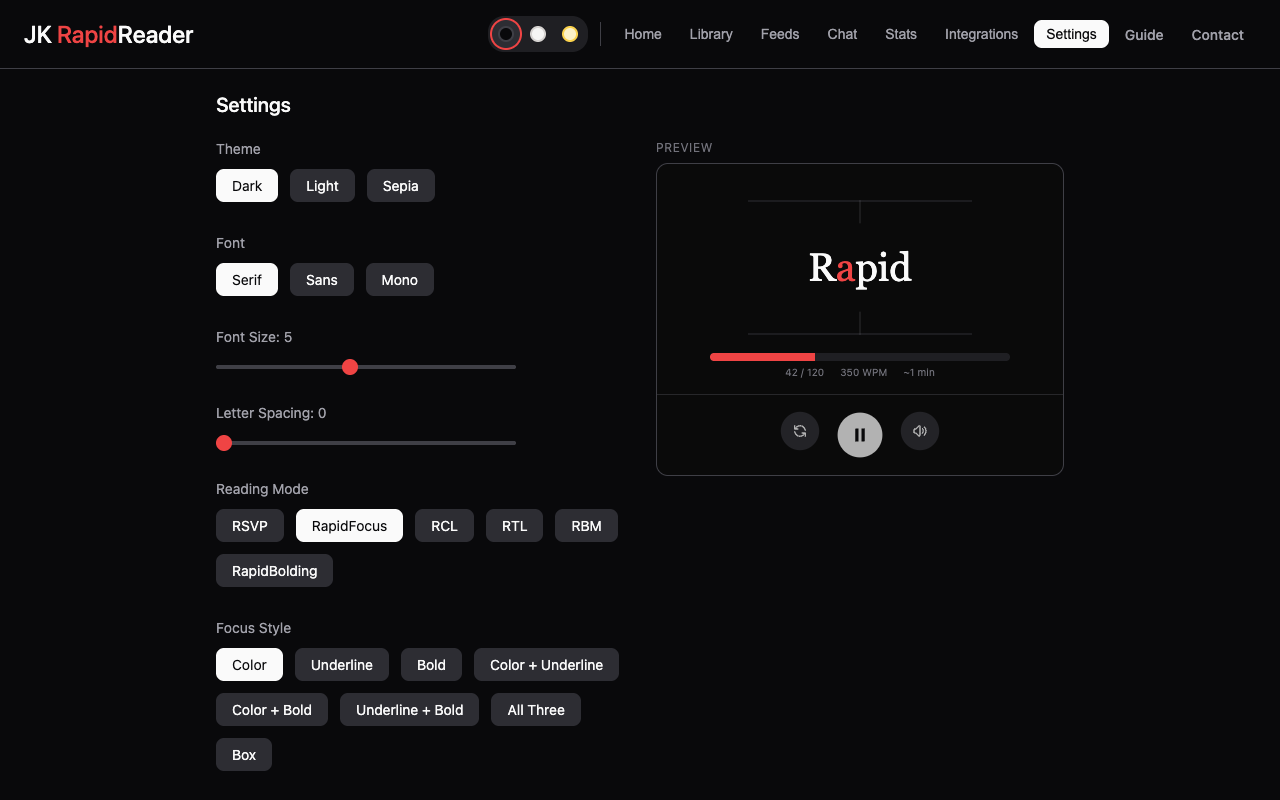
Themes, fonts and reading modes, including help for dyslexic readers.
01
Themes
Dark, light and sepia.
02
Fonts and spacing
Font, size and letter spacing, including dyslexia-friendly fonts.
03
Dyslexia-Friendly Mode
One switch for settings that help many dyslexic readers.
04
Focus styles
How the focus letter is marked, word alignment, and a bolded-reading mode.
05
Peripheral Preview
See the next word coming.
06
Chunk Mode
Read several words at a time.
10 — Your data
A folder you own.
Plain files on your computer. No account, no tracking.
01
Plain Markdown
Every article is a .md file, with notes, quizzes and chats beside it.
02
Obsidian-friendly
Edit in any editor; RapidReader picks up the change.
03
Back up and sync
Put the folder in Dropbox or Google Drive, or back up to one file.
04
No account
Nothing to sign up for. The extension sends nothing to us.
05
Your keys stay local
AI requests go from your browser straight to the provider.
06
Keyboard and screen readers
Full keyboard control, and support for screen readers.
Try it on something you saved and never read.
It takes a minute to install and three to set up.